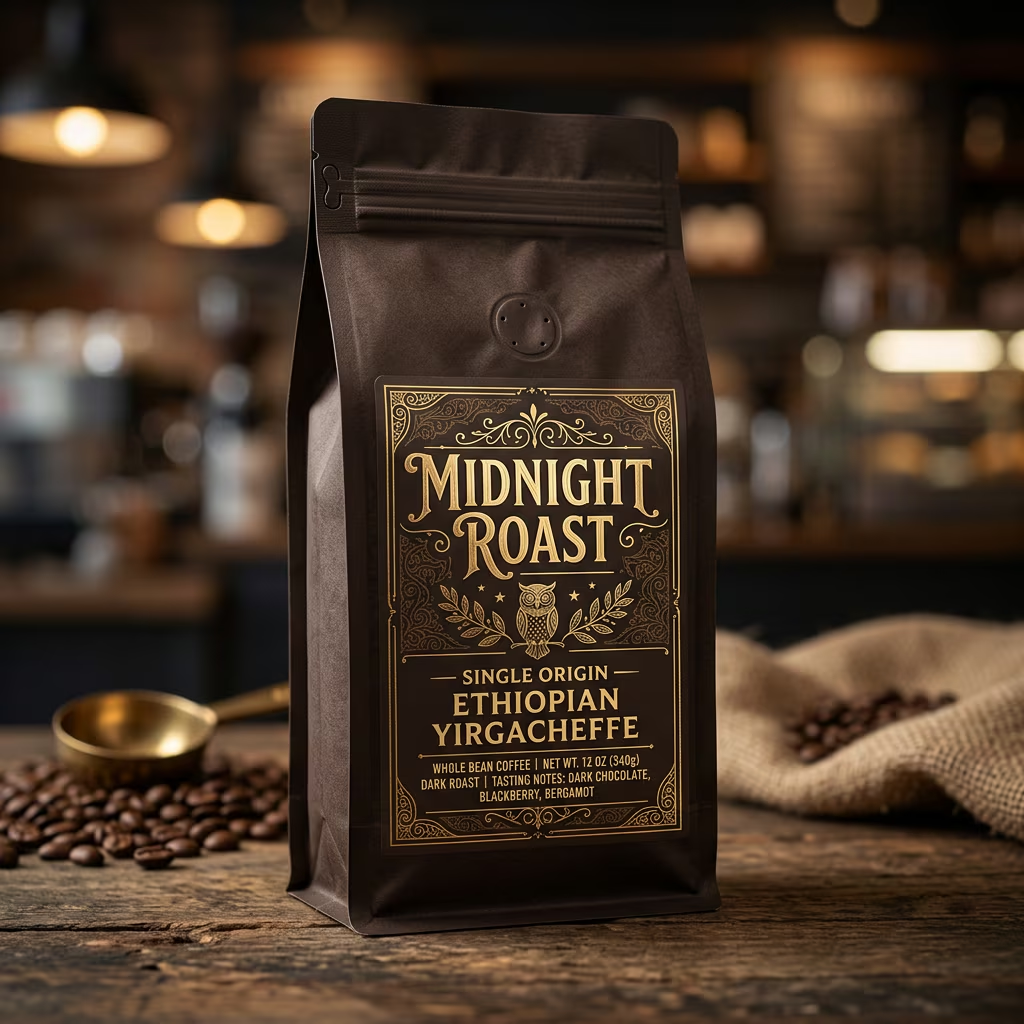
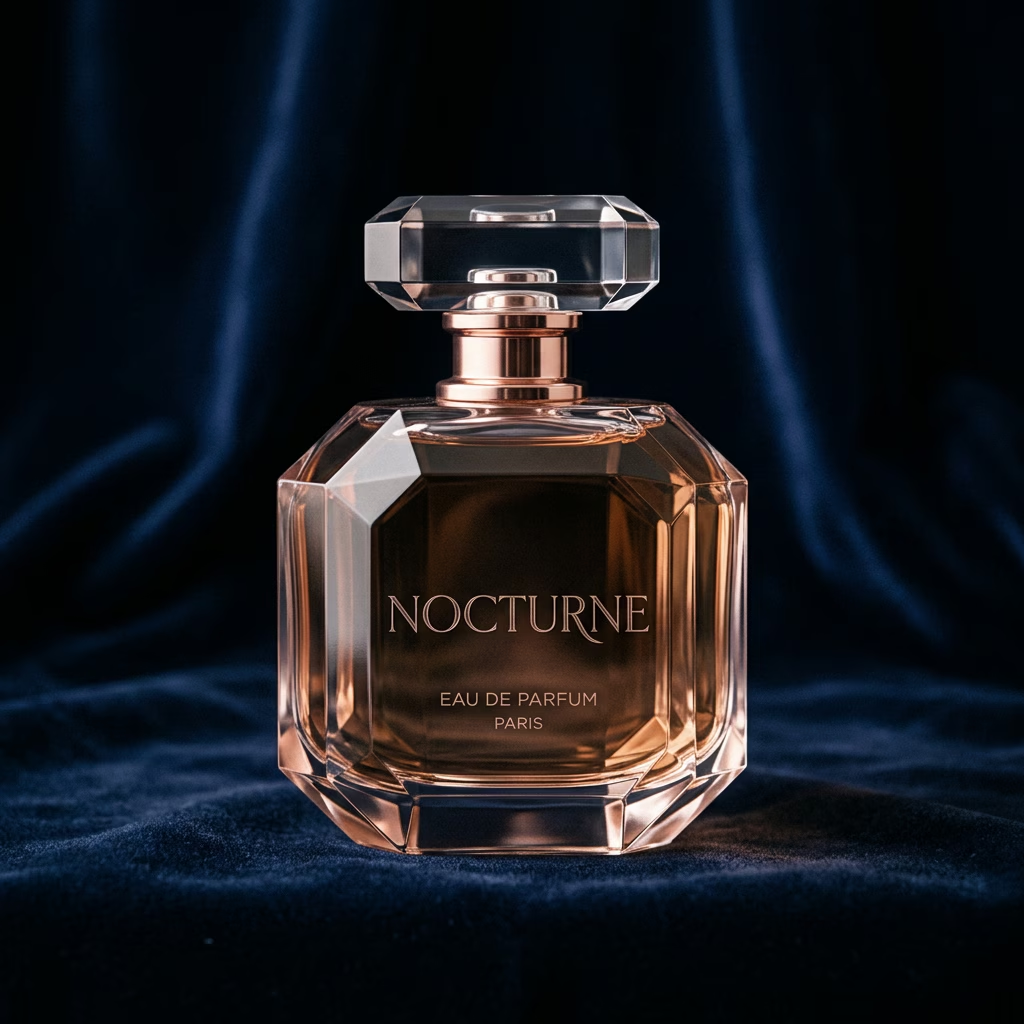
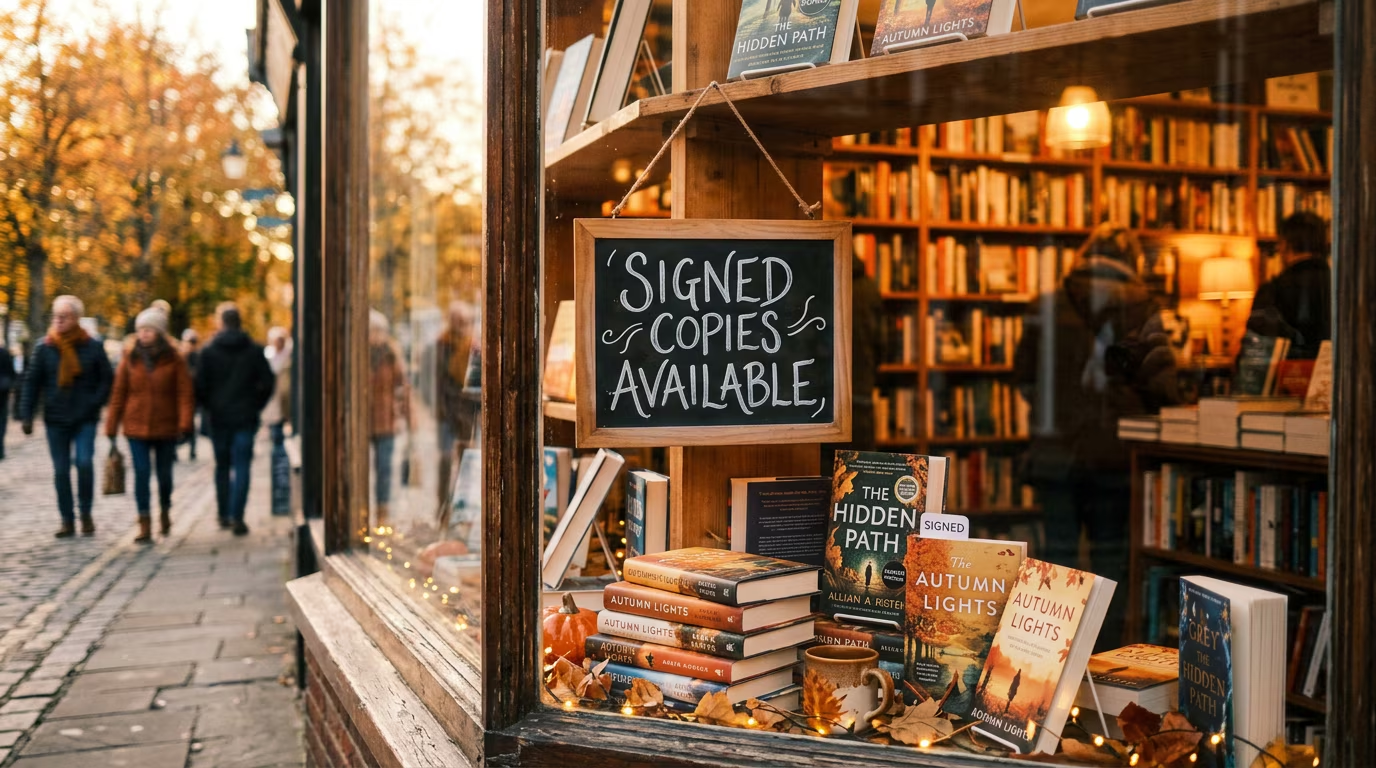
Product Photography Prompts
Product, packaging, retail, and ad prompts with concrete lighting, material, and layout directions.
How to Create Images with Product Photography Prompts in 3 Steps
Use the prompt cards as a starting point, customize the details, and generate a polished image with a focused workflow.
Choose a prompt
Find a prompt card that matches the image style, subject, or workflow you want to create.
Copy and adapt
Swap the subject, color palette, scene, text, or ratio while keeping the visual structure clear.
Generate and refine
Open the generator, test the prompt, and iterate with smaller edits until the result matches your goal.
Why Use Product Photography Prompts?
Prompt collections give you repeatable structures for common image-generation tasks instead of starting from a blank box.
Prompt structure that gets out of your way
Use the cards as practical starting points, then rewrite the parts that should match your brand, campaign, product, or creative direction.
Start faster
Use a complete prompt as your first draft, then only edit the details that matter.
Keep results specific
Clear style, subject, layout, and lighting cues help the model produce more useful outputs.
Reuse the workflow
The same collection format works for future prompt topics and detail pages.